

Asset Management with Persistent Saved Filters
Managing large-scale asset inventories enables users to save and quickly apply custom filters, facilitating efficient asset management.
Persistent Saved Filters enable users to create and store custom asset filters, making it easier to locate and manage assets without having to reapply filter conditions in each session.
Key Benefits
Section titled “Key Benefits”- Users can save custom filters for frequently used asset searches.
- Saved filters allow for quick application, streamlining asset management.
- Bulk actions and asset monitoring can be performed without re-entering filter conditions.
- Quick actions on saved filters enable faster asset selection.
How to Use Persistent Saved Filters
Section titled “How to Use Persistent Saved Filters”Step 1: Apply Filters to Your Asset List
Section titled “Step 1: Apply Filters to Your Asset List”Navigate to the secondary menu on the Assets page and click the ’+’ icon to create a Preset Filter. The Save Preset Filter window will open, allowing you to configure a custom Asset Filter that remains persistent for your user account.
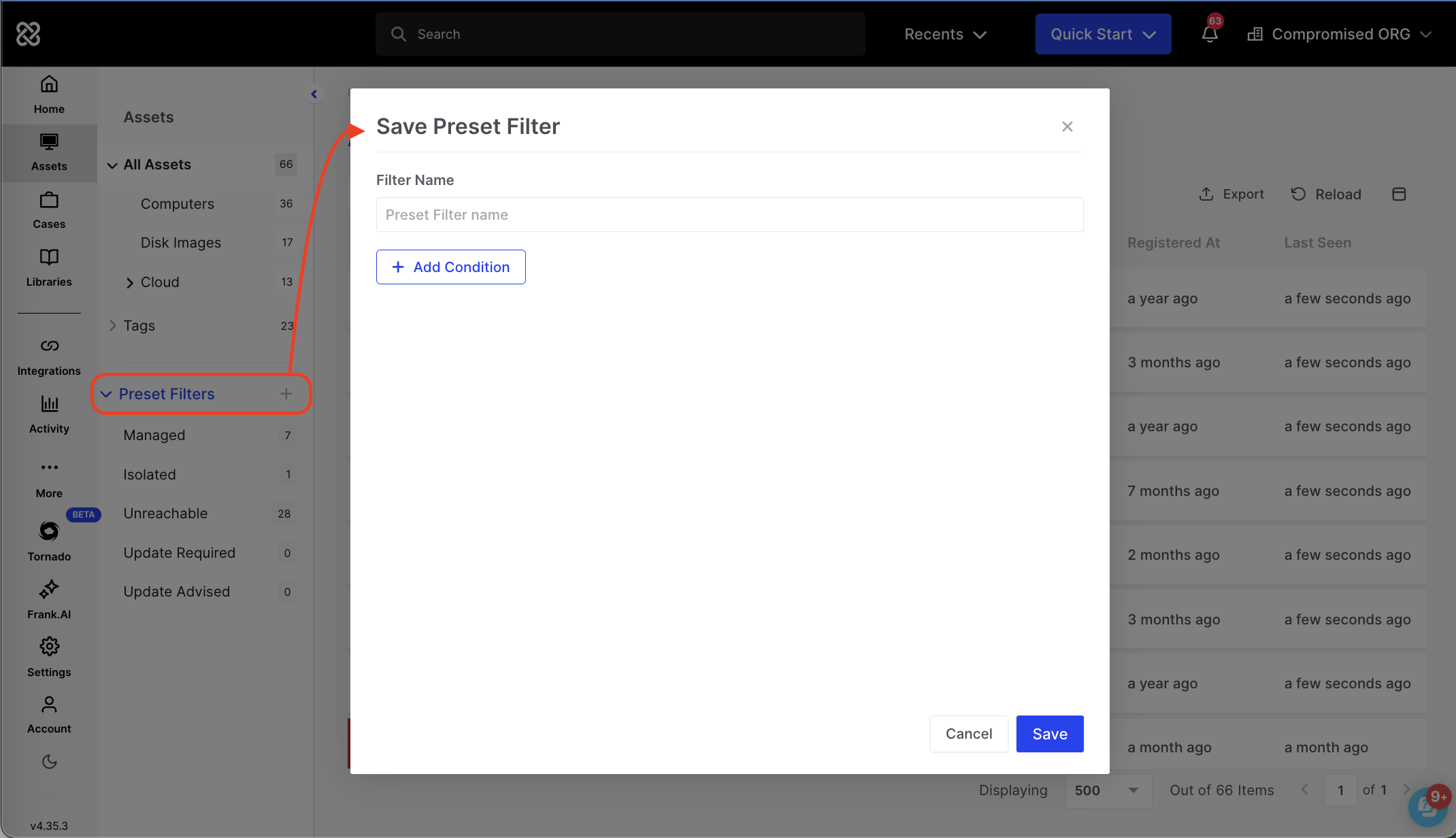
Asset Management with Persistent Saved Filters: Save Preset Filter
Step 2: Configure a custom Asset Filter
Section titled “Step 2: Configure a custom Asset Filter”Use the filtering options to build a filter to refine the asset list based on criteria such as status, tags, or isolation state.
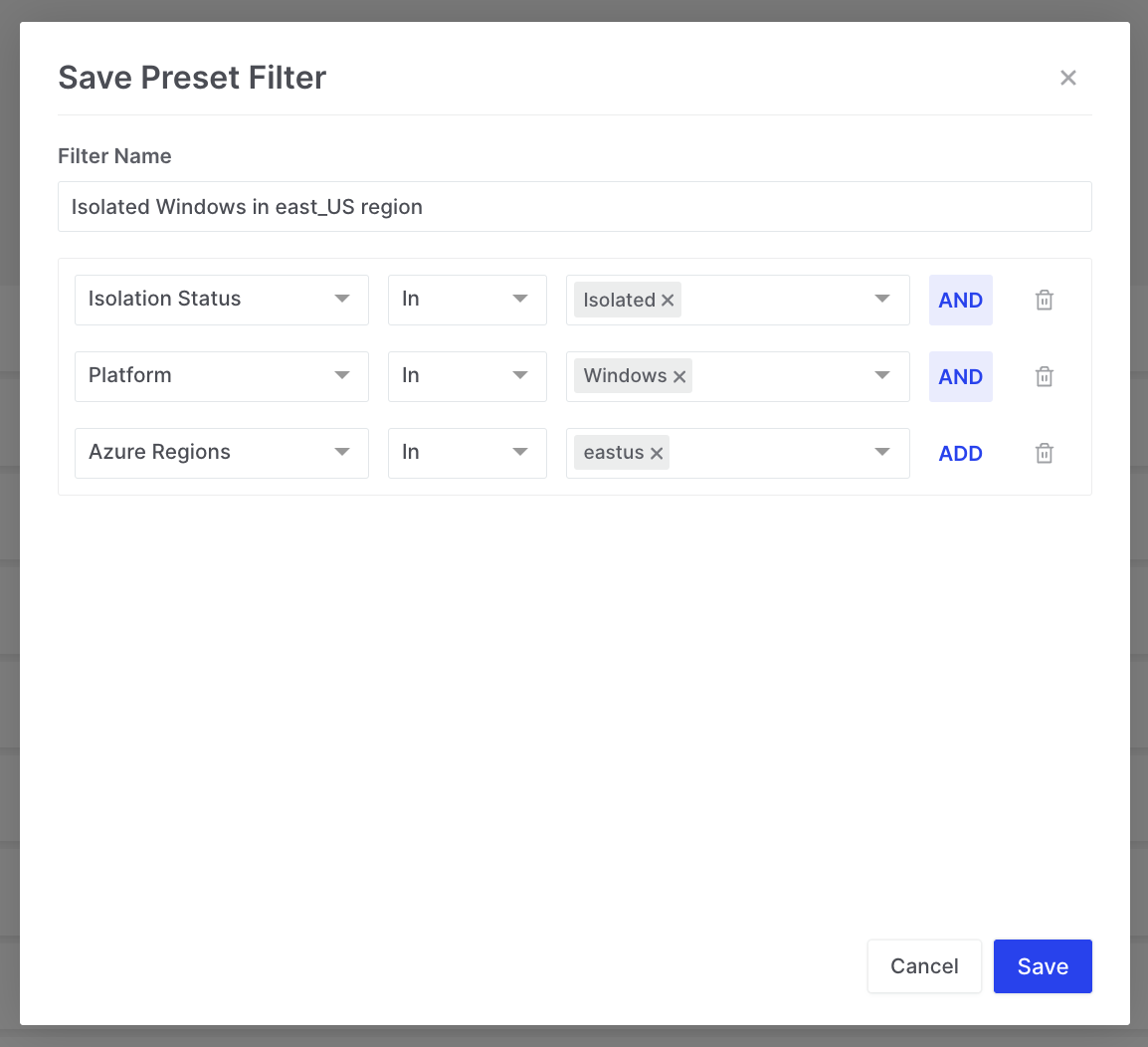
Asset Management with Persistent Saved Filters: Save Preset Filter
Step 3: Save a Custom Filter
Section titled “Step 3: Save a Custom Filter”After applying the desired filter conditions, enter a name for the filter and click “Save,” to confirm your selection.
Step 3: Access and Apply Saved Filters
Section titled “Step 3: Access and Apply Saved Filters”Select the newly saved filter from the Preset Filters drop down list in the secondary menu to instantly apply it.
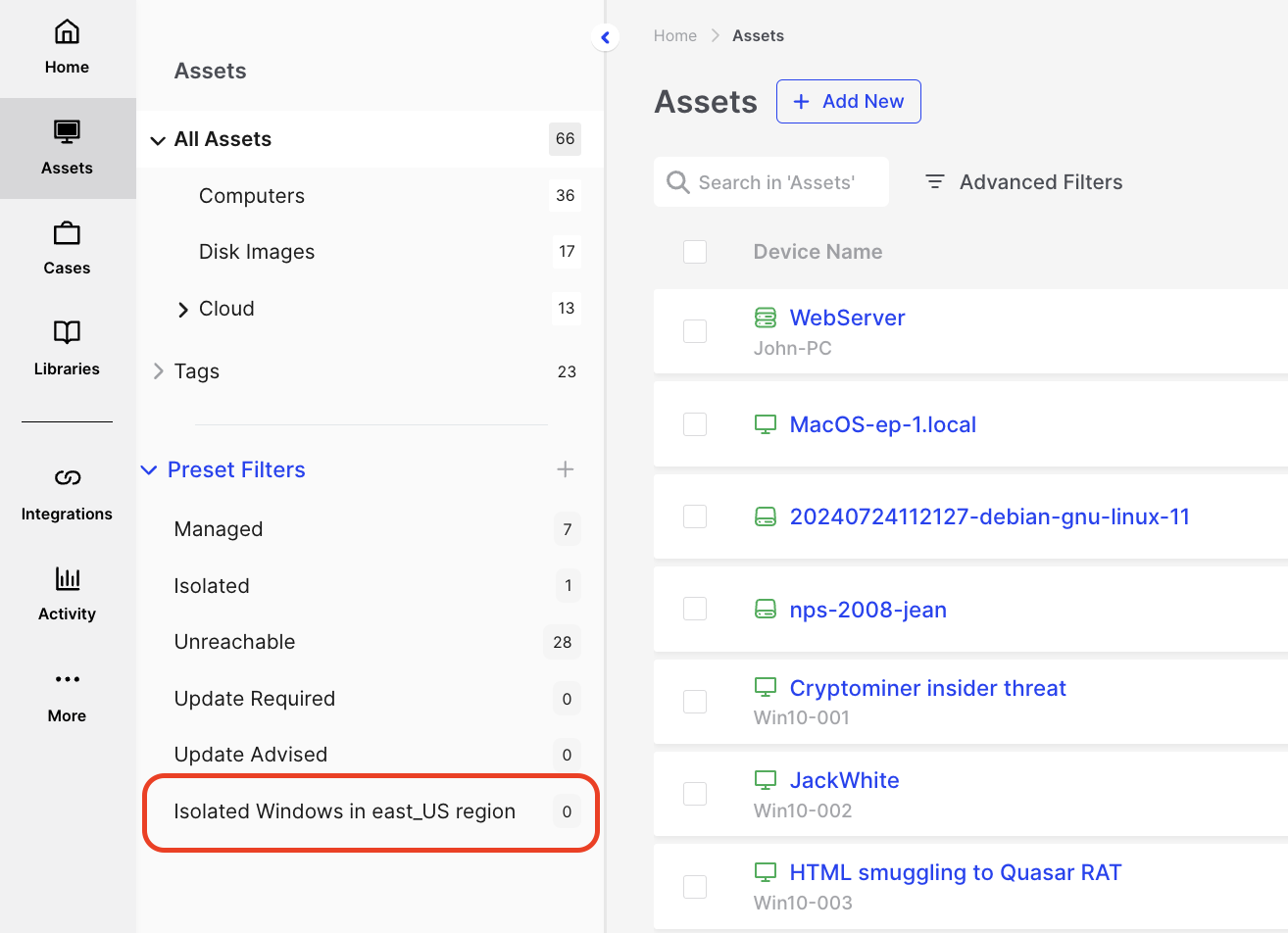
Asset Management with Persistent Saved Filters: Apply Saved Preset Filter
Step 4: Manage Saved Filters
Section titled “Step 4: Manage Saved Filters”Users can edit or delete their saved filters anytime by clicking the three-dot menu next to the preset filter name. This menu also provides access to Quick Actions, enabling bulk operations directly from saved filters.
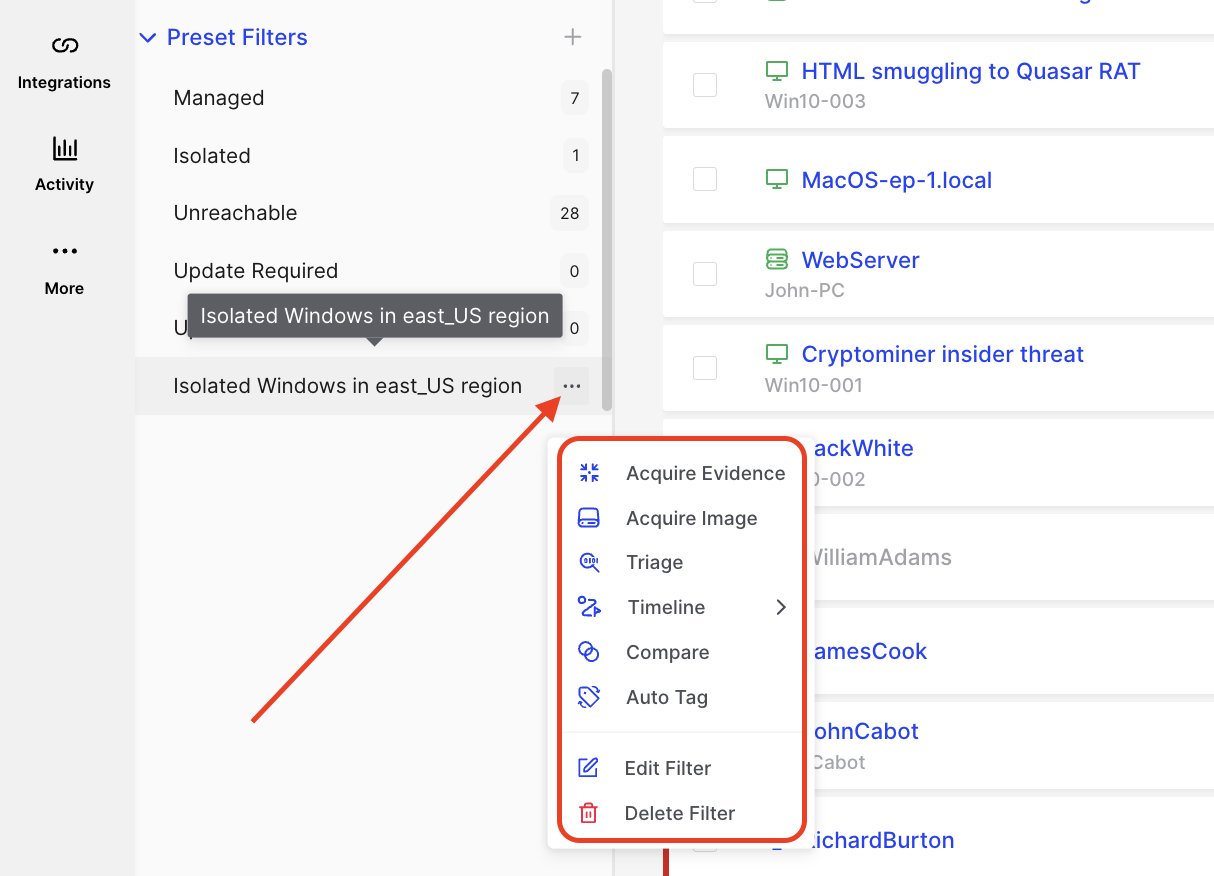
Asset Management with Persistent Saved Filters: Manage Saved Preset Filters